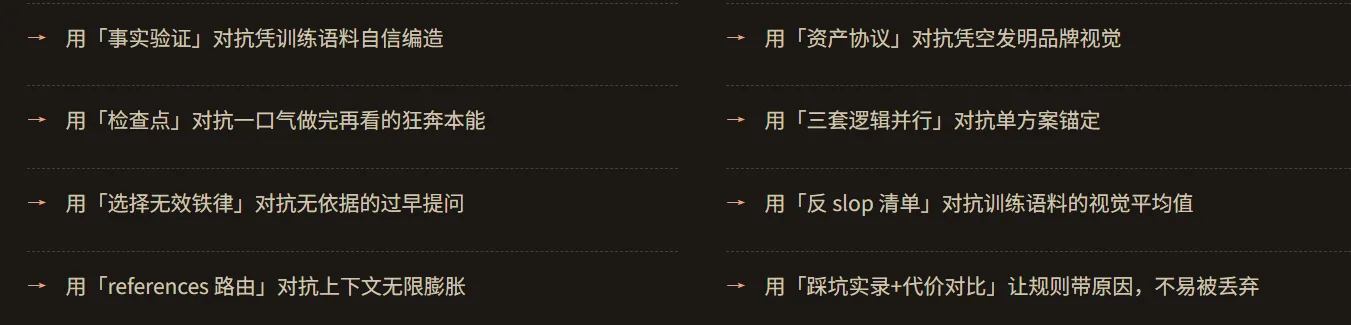
1. AI Slop: Mediocre by Default
First, the word slop. Its original meaning is swill, pig slop, the mixture of leftover rice and soup from a cafeteria. By extension it means something shoddily mass-produced. With large AI models, the model tends to output the average of its training data, and the average almost inevitably ends up mediocre. It’s the least valuable thing there is.
For example, AI used to lean hard toward blue-purple. Back when the Tailwind team wrote the example code for their Tailwind UI component library, the default examples used indigo-500, a color sitting between blue and purple. The result was that, for a long time after, every AI-generated UI in the world defaulted to that color. On top of that there are rounded cards with a colored bar down the left side, and dark blue backgrounds with neon glow (in design, “glow” means a light-emitting effect).
So the outputs you get from that averaged training corpus make perfect counterexamples.
2. huashu-design’s Default Design Philosophy
The core of huashu-design’s SKILL.md is a set of behavioral rules with explicit priorities: the seven design philosophies, where the ones listed higher override all other processes.
2.1 Fact-Checking Beats Assumptions
If it involves a specific product, version, or release date, the first step must be a web search; judging from training corpus is forbidden. It even gives a cost comparison: 10 seconds of searching << 2 hours of rework from getting it wrong. And this rule’s priority is even higher than the priority of asking the user questions.
2.2 Start from the Context You Already Have
A good high-fidelity design always grows out of a design system, screenshots, or a brand spec. Doing hi-fi out of thin air is the last resort — out of thin air = generic. Note:
The word fidelity originally comes from audio equipment; its literal meaning is how faithfully something reproduces reality. In design, it refers to how close a mockup is to the real product.
hi-fi: high fidelity, i.e. high fidelity. Its counterparts are lo-fi (low fidelity) and mid-fi (medium fidelity).
2.3 Junior Design Mode
Position yourself as the user’s junior designer: write down your assumptions and placeholders, show them early, and only refine after they’re confirmed.
For example, ask the AI to build a webpage. It first hands over three gray boxes and one assumption, like [I’m guessing the homepage is a calendar view]. You reply, “Right, but the check-in button should be the biggest.” Then it refines. If the direction is wrong, what you lose is one sentence, not a whole page.
The underlying logic here: if the understanding is wrong, fixing it early is 100 times cheaper than fixing it late.
2.4 Give Variants, Not the Final Answer
By default it produces three variants across dimensions, from by-the-book (the textbook-safe version) to novel (the experimental version). The middle variant has no fixed definition, but it’s a spectrum-like transition from standard to innovation that breaks boundaries. The middle one is a balance, an anchor point, like a bisection closing in on the answer, that lets you know whether the next iteration should move toward 1 or toward 3.
Of course, among the three variants, option 2 tends to get picked at a higher rate. That’s the compromise effect from behavioral psychology.
2.5 Honest Placeholders > Bad Implementations
Very often, when the AI writes design prototypes, if it can’t draw an icon well it forces out a bad SVG, or it fabricates data and states it as fact. This rule puts a stop to that.
For example: leave a gray block that reads “3 real user quotes to come here,” instead of making up three lines of “This app changed my life.” Same logic: if you have no data, don’t write “the choice of 10,000+ college students” in the features section. Note the dividing line: filling in fake names and fake posts to demonstrate the layout is a mock doing its job; fabricating factual claims is what this rule forbids.
2.6 System First, Don’t Pad
Every element has to earn its place. Whitespace is a composition problem; you don’t fill it with made-up content. Watch out for data slop, icon slop, and gradient slop.
For instance, if the settings page only has three options, let the rest of the empty space just sit there. Don’t stuff a “today’s horoscope” card in there just to avoid emptiness.
2.7 Anti-AI Slop
In the skill this isn’t a checklist; it’s a four-layer system.
Layer 1: definitions and the logic chain
First it defines AI slop: “the greatest common visual denominator in AI training data.” Note that its criterion isn’t ugliness, but “carries no brand information.” Then comes a four-step logic chain: you want design = you want the brand to be recognized → the AI’s default output = the average of the training data = a blend of every brand → therefore the default output dilutes your brand into “just another AI page” → fighting slop isn’t aesthetic fussiness, it’s protecting the user’s brand identity. Every prohibition hangs off this logic chain, and that’s why the rules have to come with the “why” — that’s how you keep the model from abandoning the rules in edge cases.
Layer 2: the negative list
| Element | Why it’s slop | When it’s OK |
|---|---|---|
| Aggressive purple gradients | The universal formula for a “tech feel” in AI training data; it shows up on every SaaS/AI/web3 landing page | The brand itself uses purple gradients (e.g. Linear in some contexts), or the task is specifically to satirize/showcase this kind of slop |
| Emoji as icons | In the training data every bullet point comes with an emoji; it’s the disease of “not professional enough, so pad it with emoji” | The brand itself uses them (e.g. Notion), or the product’s audience is children/casual contexts |
| Rounded cards + colored left border accent | The overused combo of the 2020-2024 Material/Tailwind era; it has already become visual noise | The user explicitly asks for it, or the combo is preserved in the brand spec |
| SVG-drawn imagery (faces/scenes/objects) | AI-drawn SVG people always have misaligned features and weird proportions | Almost never — if there are images, use real ones (Wikimedia/Unsplash/AI-generated); if not, leave an honest placeholder |
| CSS silhouets / hand-drawn SVG instead of real product images | What you get is a “generic tech animation” — black background + orange accent + rounded bars, every physical product looks the same, brand recognition drops to zero (verified with a DJI Pocket 4 on 2026-04-20) | Almost never — first follow the core asset protocol to find real product images; when there really are none, generate with nano-banana-pro using the official reference image as the base; as a last resort, mark an honest placeholder telling the user “product image pending” |
| Inter/Roboto/Arial/system fonts for display type | Too common; readers can’t tell whether this is a “designed product” or a “demo page” | The brand spec explicitly uses these fonts (Stripe uses Sohne/Inter variants, but finely tuned) |
The GitHub-dark shortcut: uniform dark blue background #0D1117 + generic cyan/purple neon glow | This one specific combination is a copy-paste cliché on SaaS/AI landing pages — note that it’s not “all dark themes are banned” | Developer-tool products whose brand already goes in this direction |
Where the line is: “the brand itself uses it” is the only legitimate reason for an exception. If the brand spec explicitly says to use purple gradients, then use them — at that point it’s no longer slop, it’s a brand signature.
⚠️ Don’t kill off the whole dark-and-bold camp by mistake: the only thing banned is that one shortcut: “uniform dark blue background + generic neon glow.” Cinematic dramatic lighting, warm cyberpunk (Ash Thorp’s orange/cyan rather than cold blue), and the dark, athletic-poetry narratives of motion design (Locomotive) are all dark with authorial intent, and they are not in the banned zone. They carry strong stylistic information; they are precisely the antidote to “identical minimalism everywhere.”
Layer 3: the positive list
-
text-wrap: pretty+ CSS Grid + advanced CSS: typographic details are a “taste tax” that AI can’t even tell apart, and an agent that uses these looks like a real designer -
Use
oklch()or colors already in the spec, don’t invent new colors on the fly: every color improvised in the moment drags down brand recognition 3. Prefer AI-generated imagery (Gemini / Flash / Lovart); use HTML screenshots only when you need precise data tables: AI-generated images are more accurate than hand-drawn SVG and have more texture than HTML screenshots 4. In copy, use 「」 instead of "": it’s standard Chinese typography, and a detail that signals the text “has been proofread” 5. Push one detail to 120% and the rest to 80%: taste = being refined enough in the right places, not applying effort evenly
Note:
text-wrap: pretty: it solves the orphan-word problem in typography. When a text paragraph wraps, the browser’s default algorithm packs each line as full as it can, and wraps when it can’t fit any more; it never goes back to optimize. As a result you get lines containing just a single word or a single punctuation mark. This style makes the browser strike a global tradeoff when wrapping: it would rather leave the earlier lines a bit loose than let the ending be uneven.- CSS Grid: the two-dimensional layout system for CSS. Before it, web layout went through a dark era of forcing things with
tableand conning them withfloat; then Flexbox arrived and solved the “one-dimensional” arrangement problem — how to divide space within a row, how to align things. But a page is fundamentally two-dimensional: there are rows and columns, cards need to span rows, sidebars need to stay fixed, grids need to line up. Grid was born for exactly this: you first declare on the container “I want this many rows and columns, and this is how wide each column is,” e.g.grid-template-columns: 1fr 2fr 1fr, wherefris the unit that splits up the remaining space in proportion; child elements then fall into place automatically, and you can also precisely specify that a given element “occupies column 2 through column 4 and spans 2 rows.” It’s a division of labor with Flexbox: Grid handles the macro skeleton (page structure, card matrices), while Flex handles micro arrangement (button groups, items inside a nav bar). The way AI “blows its cover” here: in the training corpus, Flexbox’s share is far higher than Grid’s (old tutorials and old code make up the bulk of the corpus), so when the model runs into a layout that obviously calls for Grid, a three-by-three grid for example, it hands you a pile of nested flex plus manually calculated widths. It runs, but it’s a clunky roundabout way. oklch(): this is the new generation of color notation in CSS (from the CSS Color Level 4 spec), taking three parameters,oklch(lightness chroma hue). What’s revolutionary about it comes down to four words: perceptually uniform. Compare it with the old notation, HSL: in HSL, when you move lightness from 50% to 60%, yellow becomes harsh while blue barely changes — because HSL’s numbers are disconnected from how the eye feels. The OKLCH color space is calibrated to human perception: the numbers change by this much, and the eye perceives exactly this much change. That enables one extremely practical capability — predictable color schemes. Want a set of status colors for success/warning/error? Fix lightness and chroma, and only rotate the hue; the resulting red, yellow, and green are guaranteed to look “equally bright, equally saturated,” without the old problems of a yellow so bright it stabs your eyes or a blue so dark it feels murky. Want a color ramp from light to dark? Fix hue and chroma, adjust lightness in equal steps, and the resulting ladder comes out even and smooth. That is the modern way to do the “use colors already in the spec” from the quote: once the brand’s primary color is decided, the entire derived palette can be computed parametrically with oklch, instead of conjuring up a new hex code out of thin air every time.
3. huashu-design’s Routing Layer
This skill isn’t an assembly line; it’s a decision tree. The same command (say, “help me build a xx page”) goes down one of three completely different paths depending on the context in your hands.
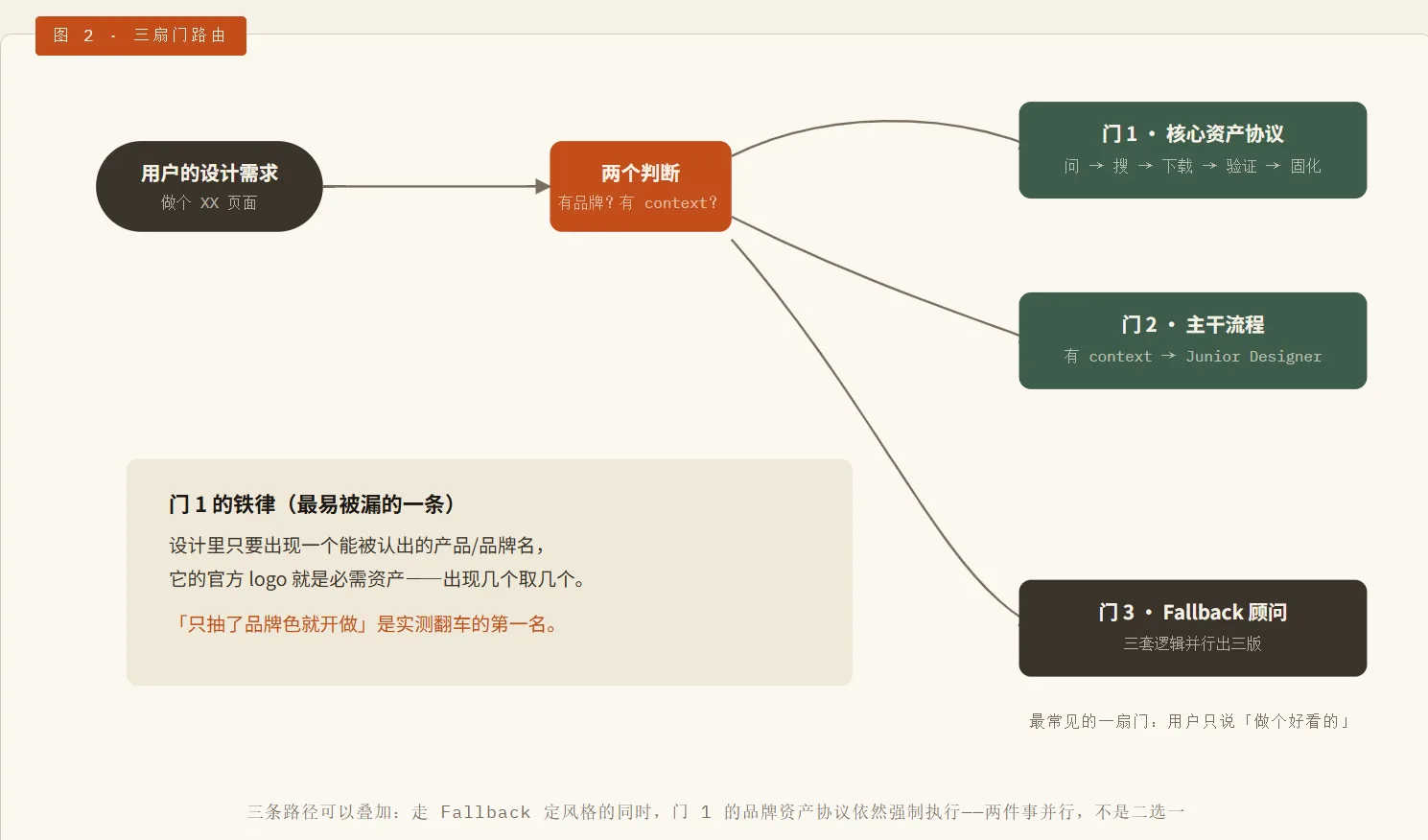
One particularly clever bit of design here is the fallback: it doesn’t ask the user to choose something they can’t see, which is very friendly. When you haven’t given it any reference at all, it won’t ask what style you want, because it takes it as given that a user who has never seen the visuals can’t possibly answer that question. A meaningful choice can only happen after you’ve seen the real visuals.
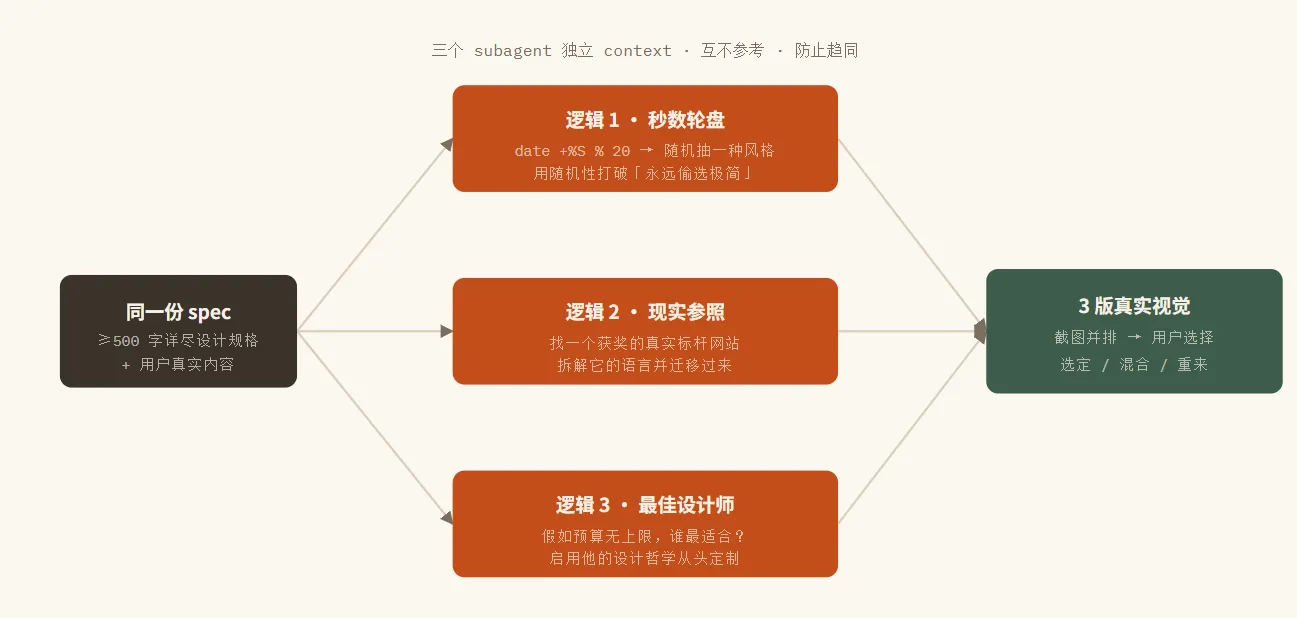
4. huashu-design’s Brake System
A model’s instinct is to finish everything in one go and show it to you, but the huashu-design skill buries a row of checkpoints into the process, forcing it to stop while fixing mistakes is still cheap.
-
Send the full list of questions at once, and don’t start until they’re answered: don’t ask and build at the same time; it avoids running in circles on a false premise
-
Asset self-check: physical products need real product images, digital products need a logo + UI screenshots. If something’s missing, stop and fill the gap, don’t force it
-
The four positioning questions wait for the user’s nod: narrative role / audience distance / visual temperature / capacity estimate; only once those are answered do you move on to the design system
-
The junior pass is shown early; only after the direction is confirmed do you formally write components
-
Before delivering, eyeball it yourself first: Playwright screenshots + click tests. AI-written code often has interaction bugs; shipping it without looking is a gamble
5. huashu-design’s Physical Structure
The main file, SKILL.md, is the constitution; details like the 24 situation-specific manuals are all externalized and loaded on demand.
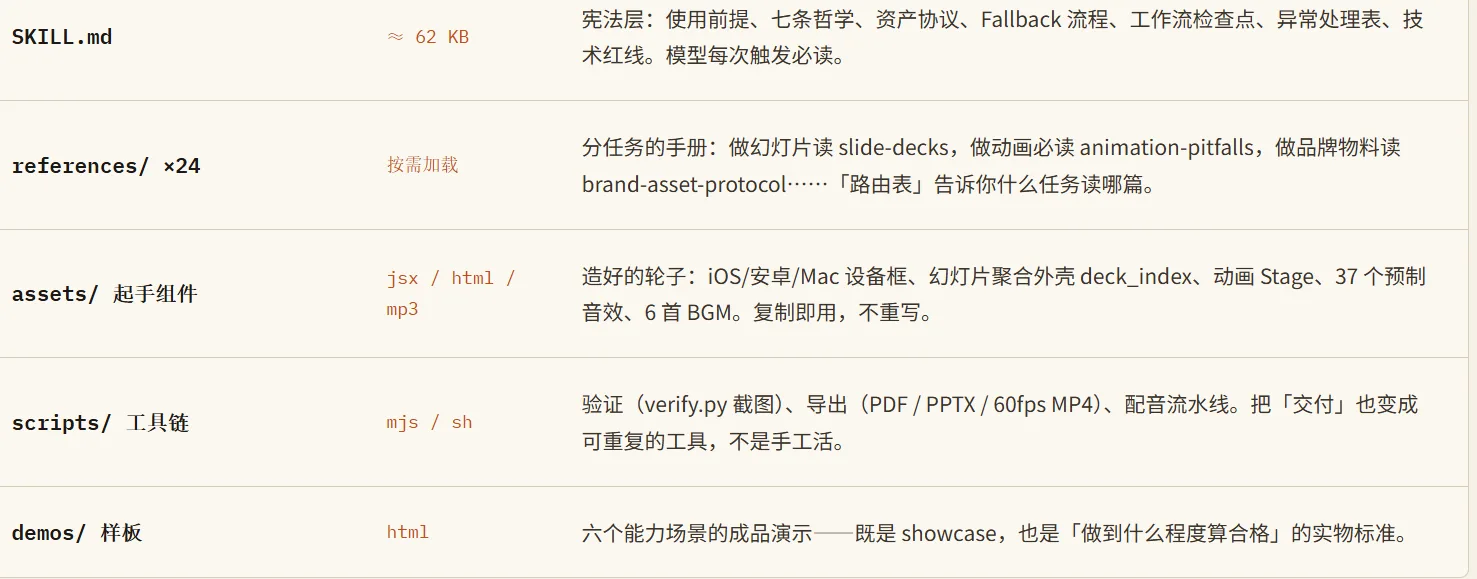
huashu-design’s secret isn’t how many design styles it provides. It’s that it turns a designer’s working habits into enforced behavior for the model, fights AI slop, and has every checkpoint stop errors while they’re still cheap.